
SUBONY JOURNAL · USB 꽂는 방향
한 번 뒤집고, 다시 뒤집던 USB.
답은 포트 안의 작은 판에 있습니다.
케이블을 집어 들고 USB 포트에 가져갑니다. 분명 사각형끼리 맞췄는데 들어가지 않습니다. 한 번 뒤집으면 이번에는 부드럽게 들어갑니다. 써보니 USB 멀티탭의 넓적한 USB-A 포트를 사용할 때도 익숙하게 겪는 장면입니다.
겉모양만 보면 위아래가 같은 직사각형이지만, 안쪽까지 같은 모양은 아닙니다. 포트 속 절연판과 케이블 끝의 절연판이 서로 비켜 들어가고, 그 위의 금속 접점이 맞닿아야 연결됩니다. 작은 입구를 확대해서 보면 USB 꽂는 방향이 훨씬 쉽게 이해됩니다.
겉은 사각형
입구 윤곽보다 안쪽 판의 위치를 봅니다.
속은 비대칭
빈 공간과 절연판이 서로 맞아야 들어갑니다.
충전은 별도 확인
단자 모양만으로 출력이나 고속충전을 판단하지 않습니다.
01 · OUTSIDE AND INSIDE
사각형 안을 보면, 비어 있는 쪽이 다릅니다
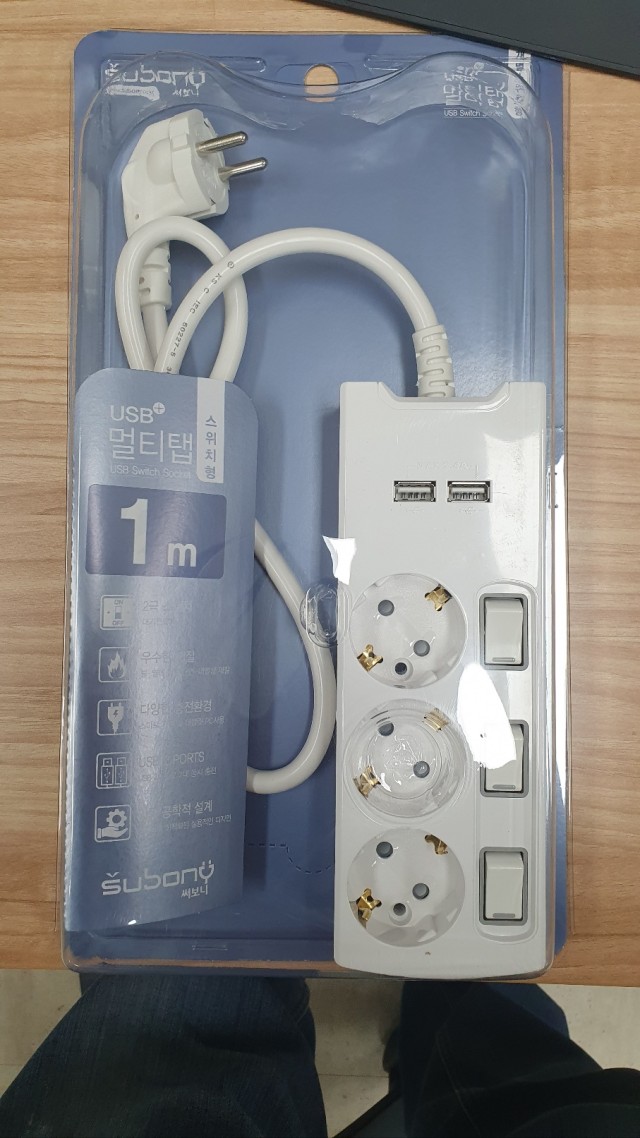
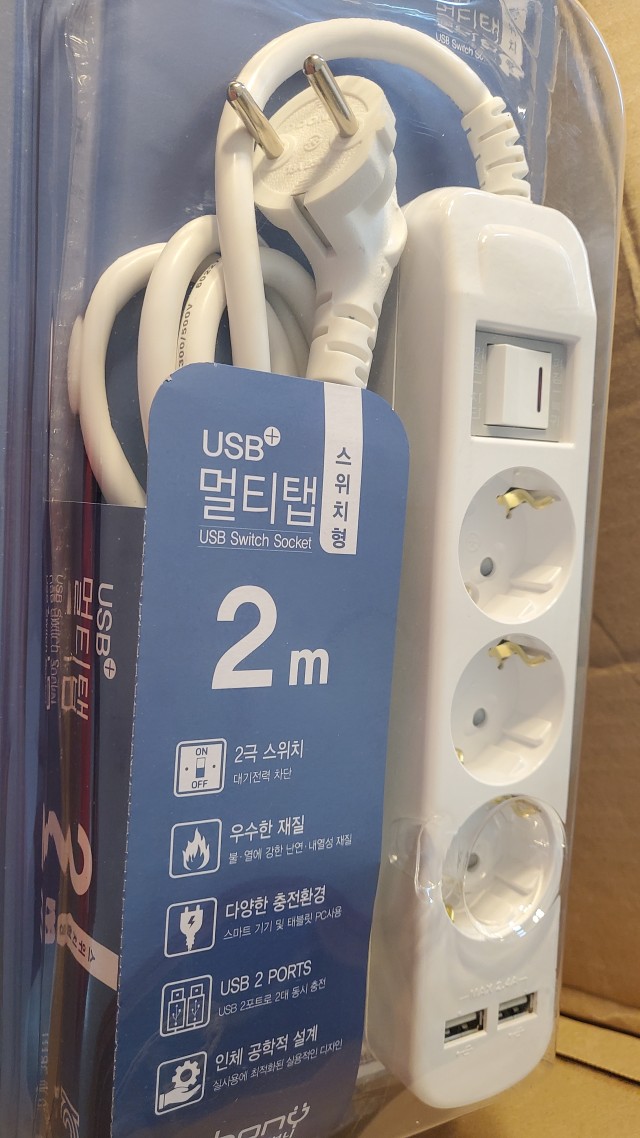
여기서 다루는 단자는 넓적한 직사각형의 일반 USB-A입니다. 스마트폰 쪽에 많이 쓰이는 작은 타원형 USB-C와는 다릅니다. 써보니 USB 멀티탭 사진에서도 둥근 AC 소켓과 별도로 나란히 놓인 두 개의 사각 입구를 찾을 수 있습니다.
USB-A 포트 안에는 얇은 절연판이 한쪽으로 치우쳐 자리 잡고 있습니다. 이 판 때문에 내부 공간이 위아래 대칭이 되지 않습니다. 케이블 끝 플러그 안에도 절연재와 빈 공간이 있어, 서로 맞는 방향에서만 충분히 들어갈 수 있습니다.
서랍의 레일을 맞춘다고 생각하면 쉽습니다. 바깥 테두리의 크기만 비슷하다고 들어가는 것이 아니라, 안쪽에서 서로 차지하는 자리까지 맞아야 합니다. 잘 들어가지 않을 때 더 세게 누르기보다 먼저 안을 보는 이유입니다.
02 · THREE PARTS
금속 테두리, 절연판, 접점은 각각 다른 일을 합니다
입구를 감싸는 금속 테두리는 플러그가 들어오는 형태를 잡아 주는 부분입니다. 그 안의 절연판은 금속 접점들을 정해진 자리에 받치고 서로 분리합니다. 판 위에 나란히 보이는 작은 금속 조각들이 실제로 상대편 접점과 맞닿는 자리입니다.
일반 USB 2.0 Standard-A 구조에는 기본 접점 네 개가 있습니다. 전원과 돌아오는 길을 맡는 VBUS·GND, 그리고 신호용 D+·D−입니다. 이름을 모두 외울 필요는 없습니다. 중요한 것은 접점이 아무 데나 닿아도 되는 것이 아니라, 정해진 상대와 만나야 한다는 점입니다.
USB-A라는 이름이 붙은 모든 단자가 네 접점만 갖는 것은 아닙니다. USB 3.x 계열에는 추가 접점이 있는 형태도 있습니다. 아래 모형은 방향을 설명하기 쉬운 USB 2.0 기본 구조를 확대해 보여 줍니다. 써보니 제품 내부 회로 전체를 재현한 것은 아닙니다.
금속 테두리
플러그와 포트의 바깥 형태를 잡아 줍니다.
절연판
접점을 받치고 내부의 맞물리는 방향을 정합니다.
금속 접점
올바르게 연결됐을 때 상대 접점과 맞닿습니다.
03 · INTERACTIVE DETAIL
뒤집으면 왜 멈출까? 3D로 천천히 맞춰 보세요
먼저 ‘맞는 방향’을 선택해 보세요. 포트의 절연판이 플러그 안의 빈 공간으로 들어가고, 플러그의 절연재는 반대쪽 공간을 차지합니다. 두 부품이 겹쳐 파고드는 것이 아니라 서로 비켜 맞물리는 구조입니다.
‘뒤집힌 방향’에서는 케이블 끝만 반 바퀴 돌아갑니다. 두 절연재가 같은 쪽을 차지해 입구에서 멈춥니다. 이어 ‘단면 보기’를 누르면 금속 테두리와 절연판 일부를 잘라 보여 주면서, 절연판과 접점이 만나는 위치를 살펴볼 수 있습니다.
화면을 드래그해 옆과 앞을 확인하거나 확대해 보세요. 재생을 멈추면 선택한 장면을 고정해 볼 수 있습니다. 모형의 삽입 속도와 간격은 구조를 알아보기 위한 표현이며, 실제 제품의 치수·삽입력·성능을 나타내지 않습니다.
빈 공간이 맞아야, 끝까지 들어갑니다
포트와 플러그 안쪽의 두 절연판을 비교해 보세요.
포트의 파란 절연판이 플러그 안쪽의 빈 공간으로 들어갑니다. 주황 절연재는 반대쪽에 자리합니다.
USB 2.0 기본 구조 · 색은 부품 구분용입니다.
04 · READ THE GAP
‘로고가 무조건 위’보다 확실한 것은 빈 공간입니다
USB 로고가 있는 면은 방향을 잡을 때 도움이 될 수 있습니다. 하지만 멀티탭을 바닥에 놓았는지, 세워 놓았는지, 어느 쪽에서 바라보는지에 따라 눈에 보이는 위아래는 달라집니다. 케이블의 인쇄나 장식만을 절대적인 기준으로 외우면 다시 헷갈립니다.
포트 안의 절연판이 어느 쪽에 있는지 먼저 봅니다. 그 판이 들어갈 공간이 플러그 안쪽에 남도록 방향을 맞춥니다. 그다음 입구와 케이블 끝을 나란히 맞춰 곧게 연결합니다. 비스듬히 밀어 넣거나 좌우로 크게 흔들어 맞출 필요가 없습니다.
방향을 맞췄는데도 유난히 걸린다면 힘을 더 주지 마세요. 빼낸 뒤 금속 끝이 찌그러졌는지, 포트에 이물이 보이는지 확인합니다. 접점 안에 금속 도구를 넣어 긁거나, 연결된 상태에서 단자를 펴려 해서는 안 됩니다. 손상된 케이블이나 포트는 사용을 멈추고 교체·점검을 받습니다.
- 01
안쪽 보기
포트의 절연판과 플러그의 빈 공간을 찾습니다.
- 02
방향 맞추기
절연판이 서로 같은 쪽을 막지 않도록 맞춥니다.
- 03
곧게 연결하기
케이블 끝을 잡고 입구와 나란히 넣습니다.
05 · SUBONY USB STRIPS
써보니에서는 AC 소켓과 USB 포트를 따로 읽어 보세요
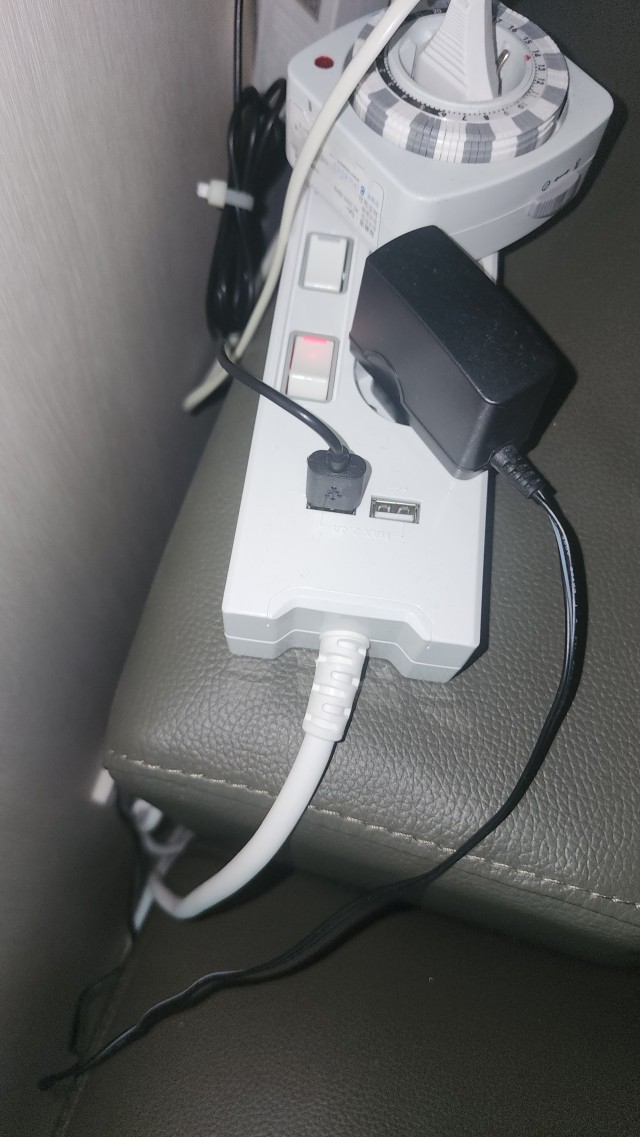
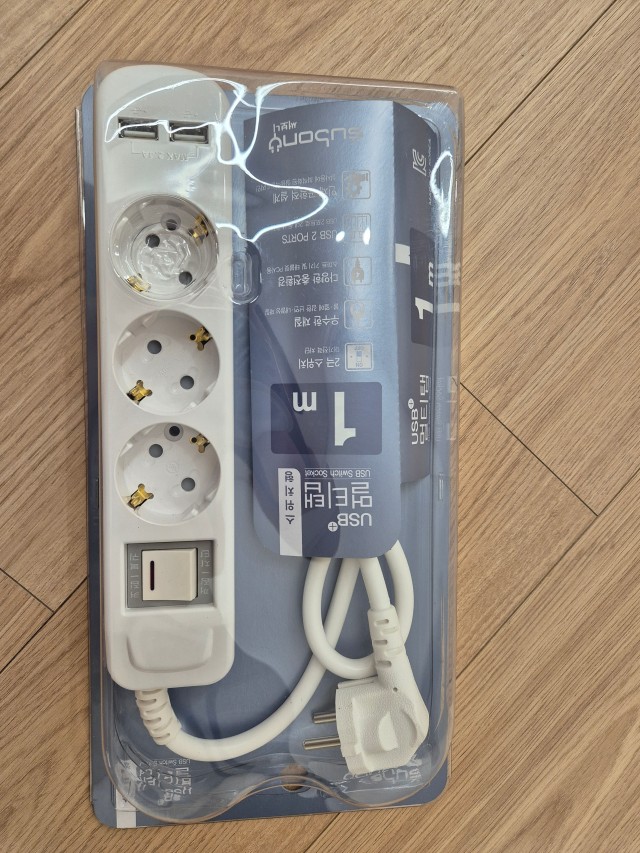
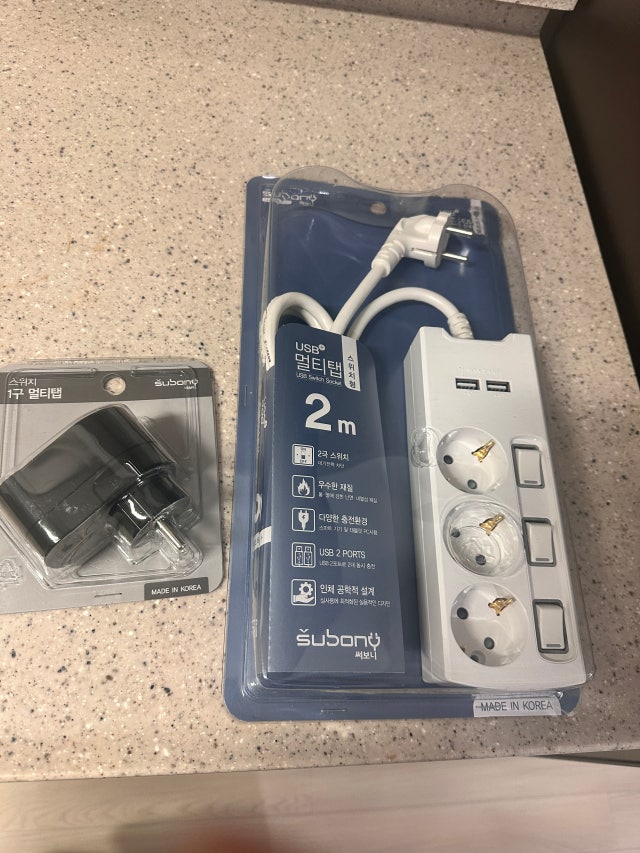
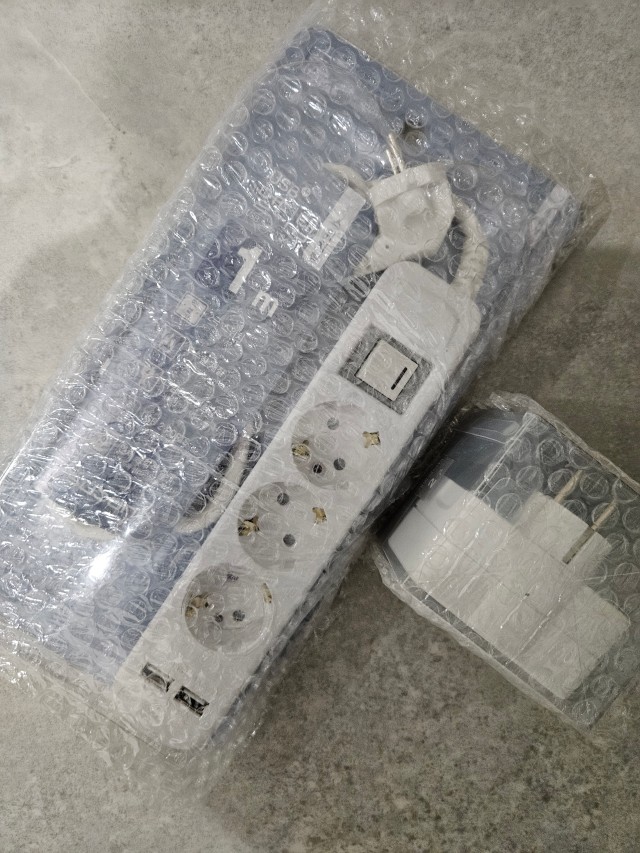
써보니 USB 멀티탭은 둥근 AC 소켓과 사각 USB 포트를 한 본체에 담은 구성입니다. 사진의 통합스위치형은 AC 소켓을 함께 조작하고, 개별스위치형은 소켓 옆에 각각의 버튼이 있습니다. 공식 USB 제품군에서도 2구·3구와 통합·개별스위치 구성을 구분해 안내합니다.
제품을 고를 때는 소켓 개수만 세지 말고 USB 케이블을 넣고 뺄 자리도 보세요. 포트가 벽이나 큰 어댑터에 가려지면 안쪽을 확인하기 어렵습니다. 자주 쓰는 USB 포트가 손이 닿는 방향을 향하도록 배치하면 연결할 때 본체를 매번 돌려 볼 일이 줄어듭니다.
써보니 USB 상시전원 구성은 벽 전원이 공급되는 동안 AC 스위치와 별개로 USB 전원이 유지되는 방식입니다. AC 버튼을 껐다는 이유만으로 USB까지 꺼졌다고 생각하지 마세요. 사용할 모델의 USB 출력 표시와 전원 안내를 함께 확인하고, 포트를 청소·점검할 때는 벽 전원에서 분리합니다.
06 · SHAPE IS NOT OUTPUT
같은 USB-A라도, 무엇을 연결하는지는 별개의 문제입니다
컴퓨터의 USB 포트와 멀티탭의 USB 충전 포트는 생김새가 비슷합니다. 그렇다고 같은 기능을 한다고 생각하면 안 됩니다. 써보니 멀티탭의 USB는 기기에 전원을 공급하는 충전 용도로 읽어야 합니다. 저장장치를 꽂아 파일을 읽거나, 키보드를 연결해 컴퓨터로 입력을 보내는 USB 허브로 사용하는 자리가 아닙니다.
접점이 보인다고 데이터 통신을 지원한다는 뜻도 아닙니다. 충전 포트에서는 신호 접점이 충전 방식을 알아보는 데 쓰일 수 있습니다. 외형 사진만으로 써보니에 특정 충전 제어나 통신 규격이 적용됐다고 단정하지 않습니다.
충전 전압·전류·출력은 해당 제품의 표시와 설명서에서 확인합니다. 두 포트가 있다고 한 포트의 표시 출력을 두 배로 사용할 수 있는 것도 아닙니다. 전체 합산인지, 포트별 한도인지 구분하고 연결 기기와 케이블의 조건까지 맞춥니다. 고속충전 역시 USB-A라는 모양이나 내부 플라스틱의 색만으로 판단하지 않습니다.
07 · THE OTHER END
휴대폰 쪽이 USB-C여도, 멀티탭 쪽은 USB-A일 수 있습니다
케이블 양 끝이 반드시 같은 모양일 필요는 없습니다. 한쪽은 써보니 멀티탭의 USB-A 포트에, 다른 쪽은 기기의 USB-C 포트에 연결하는 케이블도 있습니다. 이때 USB-C 쪽은 뒤집어 꽂을 수 있지만, USB-A 쪽은 여전히 방향을 맞춰야 합니다.
USB-C는 뒤집어 연결할 수 있게 설계된 단자입니다. USB-A에서 느끼는 방향의 제약을 줄여 주지만, 그 편리함을 케이블 반대편까지 옮겨 주는 것은 아닙니다. 손에 든 끝이 어느 단자인지부터 구분하면 ‘휴대폰에는 어느 쪽이든 들어가는데 왜 멀티탭에는 안 들어가지?’라는 혼란이 풀립니다.
변환 어댑터나 다른 모양의 케이블을 쓰더라도 전원 공급 장치의 출력이 자동으로 커지지는 않습니다. 기기에 맞는 케이블을 고르고, 필요한 충전 방식과 제품의 지원 조건을 확인하세요. 방향이 맞아 연결된 상태와 원하는 속도로 충전되는 상태는 따로 확인할 일입니다.
08 · A SMALL HABIT
잘 보이는 방향으로 두는 것부터, USB 사용이 편해집니다
멀티탭의 USB 포트를 몸 쪽으로 향하게 놓고, 케이블 끝을 확인할 만큼의 공간을 남겨 보세요. 책상 뒤에 숨겨 놓는 것이 항상 편한 배치는 아닙니다. 자주 빼고 꽂는다면 포트가 보이는 위치가 오히려 손의 움직임을 줄여 줍니다.
케이블은 팽팽하게 당겨지지 않도록 여유를 두고, 뺄 때는 전선이 아니라 플러그 몸체를 잡습니다. 방향이 맞아도 본체가 움직이거나 케이블이 옆으로 당겨지면 연결부에 힘이 계속 걸릴 수 있습니다. 포트 앞 공간과 케이블이 향하는 길을 함께 살피세요.
써보니 USB 멀티탭의 작은 사각 입구를 다시 보면, 그 안에는 방향을 정하는 절연판과 연결을 맡는 접점이 있습니다. ‘안 들어가면 더 세게’ 대신 ‘안쪽의 빈 공간부터’라는 순서만 바꿔도, 늘 반복하던 뒤집기를 조금 더 이해하면서 사용할 수 있습니다.
써보니 멀티탭 3D로 비교하기
크게 보기 ↗ENGLISH EDITION · INSIDE USB TYPE-A
Why USB-A only fits one way: a closer look at Subony’s USB ports
Look beyond the rectangular opening. The insulating insert, the available space and the contacts explain how the connection fits together.
01 · A rectangular opening with an asymmetric interior
You hold a USB cable beside a power strip, line up the rectangular outline and find that it will not go in. Turning the cable end over solves the problem. The familiar wide connector in this story is standard USB Type-A, not the smaller rounded USB Type-C connector commonly found on a phone. Subony USB power-strip photographs show two rectangular ports beside the separate round AC outlets.
The important detail lies inside the opening. An insulating insert occupies one side of the receptacle. The plug also contains insulating material and an open space. For the two parts to mate, each occupied area must line up with the space that can accept it. Matching the outer rectangle alone does not establish the correct orientation.
Think of aligning a drawer with its runners: the visible opening is only part of the fit. Looking inside the port gives you a more useful clue than repeatedly pushing against resistance. This is a mechanical question first; whether the attached device charges as intended is a separate question about the electrical specifications.
02 · The shell, insulating insert and contacts
Three visible parts are worth distinguishing. The metal shell defines and supports the outer connection. The insulating insert holds the contacts in their intended positions and separates them. Small metal contact surfaces meet the corresponding surfaces on the other connector when the parts are correctly aligned and inserted. They are not interchangeable patches of metal that can touch in any order.
The basic USB 2.0 Standard-A arrangement has four contacts: VBUS and GND for the supply path, plus D+ and D− for signals. You do not need to memorize the names to understand orientation. The practical point is that the parts must bring the intended contacts together while keeping the insulating structures clear of one another.
Not every Type-A connector contains only four contacts. USB 3.x versions can include additional contacts. The interactive model uses the simpler USB 2.0 arrangement to make the mechanical fit readable. It is an enlarged explanation of the connector principle, not a reconstruction of the entire internal charging circuit of a particular Subony product.
03 · Use the model to compare the fit
Select Correct orientation first. Watch the receptacle insert enter the open region inside the plug while the plug insert occupies the complementary space. The parts slide alongside one another rather than passing through solid material. In the Reversed orientation scene, only the cable end turns over. The inserts then occupy conflicting positions, so the plug stops at the entrance instead of continuing through the obstruction.
The Cutaway scene cuts away part of the metal enclosure and port insert to reveal the inserts and their contact surfaces. Move between these scenes while keeping the same viewing angle, then rotate the model to inspect the front and side. The enlarged structure makes an otherwise small and easily missed detail visible.
Drag to rotate, use the zoom buttons, pause the movement or reset the view. The model’s spacing and movement are explanatory choices, not published dimensions, measured insertion forces or performance results. It shows why a standard connector has a preferred orientation without asking you to dismantle a real powered product.
04 · Read the open space rather than memorizing up
A USB logo can help identify a cable end, but “the logo always faces upward” is not a dependable instruction for every installed power strip. A strip may lie on the floor, stand beside furniture or face the user from the other direction. Printing and decorative markings on the cable can also make a quick visual rule confusing.
Look for the insert inside the port, then align the plug so that its available space can accept that insert. Keep the cable end straight and parallel with the opening. There is no need to use a large side-to-side motion to make the connection fit. If you cannot see the opening, reposition the strip or improve the viewing angle before trying again.
Unusual resistance after correct alignment deserves a closer look. Remove the cable and inspect for a bent shell or visible debris. Do not scrape contacts with a metal tool or straighten a connector while it is connected to power. A damaged cable or port should be taken out of use and replaced or assessed.
05 · Read the AC outlets and USB ports separately
Subony USB strips place round AC outlets and rectangular USB ports in one housing. The photographed integrated-switch version has one shared AC control, while the individual-switch version places controls beside the outlets. The official USB range distinguishes two-outlet and three-outlet configurations as well as these switching arrangements. The photographs help you locate the visible features, not infer an unidentified model’s complete specification.
When choosing a position, count more than the available AC outlets. Leave room to reach the USB plug body and see the port opening. A wall, furniture edge or large adapter can obstruct that small area. Turning the USB end toward the user can make everyday connection easier without changing anything about the connector itself.
On Subony’s constant-power USB configuration, USB power remains available independently of the AC switches while mains power is supplied. Turning off an AC button therefore does not establish that the USB section is off. Check the selected model’s instructions and disconnect the strip from the wall before cleaning or inspecting the ports.
06 · Connector shape does not establish charging performance
A computer USB port and a power-strip charging port can look similar while serving different purposes. Treat the Subony strip’s USB ports as charging power connections. They are not a computer hub for reading a storage drive or passing keyboard input to a computer. The presence of metal contacts does not by itself prove that a product supports data transfer.
Signal contacts can participate in identifying a charging arrangement without providing a normal computer data connection. That general principle does not establish which controller or charging protocol is fitted inside a particular Subony model. Read the actual product information rather than inferring the circuit from a photograph.
Check the marked output voltage, current and any shared limit. Two ports do not automatically provide twice the stated total output. Distinguish a combined rating from a per-port limit, then consider the requirements of the device and cable together. Neither the Type-A outline nor the colour of an insulating insert is sufficient evidence of a particular fast-charging capability. Physical fit and electrical compatibility need separate checks.
07 · The two ends of a cable can be different
A cable can have a Type-A plug at the power-strip end and a Type-C plug at the device end. In that arrangement, the Type-C end can be turned over, while the Type-A end still needs the correct orientation. Reversibility is a property of that connector design, not a feature passed along the cable to a different connector at the other end.
This explains a common puzzle: the end that fits your phone seems to work either way, yet the end beside the power strip does not. Identify the connector you are holding before deciding how it should fit. The smaller rounded Type-C opening is designed for reversible insertion; the standard rectangular Type-A connection uses the complementary internal shapes shown in the model.
A different cable or a conversion adapter also does not automatically increase the power supply’s output or add a missing charging protocol. Select a suitable cable for the device and check the supported charging conditions. A connection that physically fits is only the first part of a successful charging setup.
08 · Make the port easier to see and reach
Start with placement. Face the USB ports toward the area from which you normally connect the cable, and leave enough space to hold the plug body. Hiding every connection behind a desk may look tidy, but it can make a frequently used port harder to inspect. A visible connection often requires less handling of the whole strip.
Leave some slack in the cable so that it does not pull sideways on the port. To disconnect it, hold the plug body rather than tugging the cable. Correct orientation does not remove the mechanical strain caused by a tight cable or a moving strip. Think about both the space in front of the port and the route the cable follows afterward.
The small opening on a Subony USB strip now has three recognizable parts: a shell, an insulating insert and contacts. Replace the habit of pushing harder with a simpler sequence—look inside, align the available space and connect straight. That small change turns a familiar moment of frustration into an understandable part of using the product.
추가 정보단자와 기능 비교 · 용어 7가지 · 연결 확인표 · FAQ 8가지
눈으로 보이는 것과 따로 확인할 것
| 보이는 특징 | 알 수 있는 것 | 따로 확인할 것 |
|---|---|---|
| 넓적한 사각 USB-A | 연결 단자의 형태와 방향 | 전압·출력·충전 방식 |
| 안쪽 절연판 | 플러그와 맞물리는 공간 | 손상·이물 여부 |
| 나란한 두 포트 | 물리적인 연결 자리 수 | 출력의 합산·포트별 한도 |
| 소켓 옆 AC 스위치 | AC 소켓의 조작 구성 | USB 상시전원 안내 |
| 케이블 반대편 USB-C | 기기 쪽 단자의 형태 | 반대편 USB-A 방향과 기기 요구 조건 |
입구를 이해하는 일곱 가지 말
- USB-A
- 넓적한 직사각형의 USB 단자 형태입니다. 형태 이름만으로 통신 속도나 충전 출력을 확정할 수 없습니다.
- 플러그
- 케이블 끝에서 포트 안으로 들어가는 쪽의 연결 부품입니다.
- 포트·리셉터클
- 제품 본체에 마련된 플러그를 받는 연결 자리입니다.
- 절연판
- 접점을 받치고 서로 분리하는 절연재 부분입니다. USB-A의 내부 맞물림은 위아래가 대칭이 아닙니다.
- 접점
- 연결할 때 상대 부품의 금속과 맞닿아 전기적으로 이어지는 자리입니다.
- 금속 셸
- 단자 바깥을 감싸 형태와 결합을 지지하는 금속 부분입니다. 접점과 같은 의미는 아닙니다.
- 충전 전용 포트
- 기기에 전력을 공급하는 용도의 포트입니다. 일반 컴퓨터 데이터 연결 기능을 뜻하지 않습니다.
연결하기 전에 확인할 여덟 가지
- 지금 잡고 있는 케이블 끝이 USB-A인지 확인합니다.
- 포트 안의 절연판과 빈 공간을 봅니다.
- 플러그 내부가 포트의 절연판을 받아들일 방향인지 맞춥니다.
- 포트와 케이블 끝을 나란히 놓습니다.
- 유난히 걸리면 힘을 더 주지 않고 빼서 확인합니다.
- 해당 모델의 USB 출력과 합산 조건을 읽습니다.
- 케이블을 잡고 뺄 공간과 전선 여유를 남깁니다.
- 청소·점검 전에는 벽 전원에서 분리합니다.
자주 묻는 질문
USB는 전부 한쪽 방향으로만 꽂히나요?
아닙니다. 이 글은 일반 USB-A의 연결 방향을 설명합니다. USB-C는 뒤집어 꽂을 수 있게 설계됐습니다.
케이블 양 끝의 단자 형태가 다를 수도 있으므로, 지금 연결하려는 쪽을 확인하세요.
포트 속 작은 판이 고속충전을 해 주는 건가요?
절연판은 접점을 받치고 분리하며 기계적으로 맞물리는 구조의 일부입니다. 판 자체가 충전 속도를 결정하지는 않습니다.
고속충전 지원 여부는 전원 공급 장치·케이블·기기의 지원 규격과 해당 제품 안내로 확인합니다.
로고가 위로 오게 꽂으면 항상 맞나요?
로고는 참고가 되지만, 포트가 설치된 방향과 바라보는 위치가 달라질 수 있습니다. 인쇄된 표시만으로 위아래를 고정해서 외우기보다 내부 공간을 살피는 편이 확실합니다.
포트의 절연판이 플러그 안의 빈 공간으로 들어갈 방향을 맞춘 뒤 곧게 연결하세요.
방향이 맞는데도 뻑뻑하면 어떻게 하나요?
정상적인 결합에도 어느 정도 힘은 필요하지만, 평소와 다른 저항이나 걸림을 억지로 넘기지는 마세요. 먼저 빼서 외형 변형과 눈에 보이는 이물을 확인합니다.
찌그러진 단자나 파손된 포트는 교체·점검 대상입니다. 금속 도구를 넣거나 통전 상태에서 단자를 고치지 않습니다.
써보니 멀티탭 USB에 메모리나 키보드를 꽂아도 되나요?
멀티탭의 USB 충전 포트는 컴퓨터 USB 허브가 아닙니다. 저장장치의 파일을 읽거나 키보드 입력을 컴퓨터로 전달하는 용도로 사용하지 않습니다.
데이터 연결은 해당 기능이 명시된 컴퓨터·허브·기기의 포트를 사용하세요. 모양이 같은 것과 기능이 같은 것은 별개입니다.
USB 포트가 두 개면 출력도 두 배인가요?
포트 수만으로 출력 합계를 계산할 수 없습니다. 제품에 적힌 수치가 전체 합산인지 포트별 한도인지 먼저 확인해야 합니다.
연결하는 두 기기의 조건과 케이블까지 함께 살피고, 모델별 출력 안내를 따릅니다.
AC 스위치를 껐는데 USB 기기가 계속 켜져 있어요.
써보니의 USB 상시전원 구성에서는 벽 전원이 공급되면 AC 스위치 상태와 별개로 USB가 동작합니다. AC 버튼만으로 USB까지 꺼졌다고 판단하지 않습니다.
해당 모델의 안내를 확인하고, 청소나 포트 점검을 할 때는 멀티탭을 벽 전원에서 분리하세요.
USB-A를 USB-C로 바꾸는 어댑터를 쓰면 충전이 빨라지나요?
단자 모양을 바꾸는 것만으로 전원 공급 장치의 출력이나 지원 충전 방식이 늘어나지는 않습니다.
기기가 요구하는 조건과 전원 공급 장치·케이블·어댑터가 지원하는 조건을 함께 확인해야 합니다.